
View Product Usage
- Log in to your Atlas↗ account.
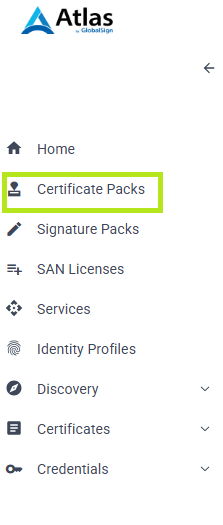
- Click on Certificate Packs on the left menu.
- On this page, you will find the following:
• Name - Displays the name of the product.
• ID - Unique identifier assigned to each product.
• Usage / Quota - Shows the amount of product consumed against the total product allocated.
• Status - Indicates the current state of the product.
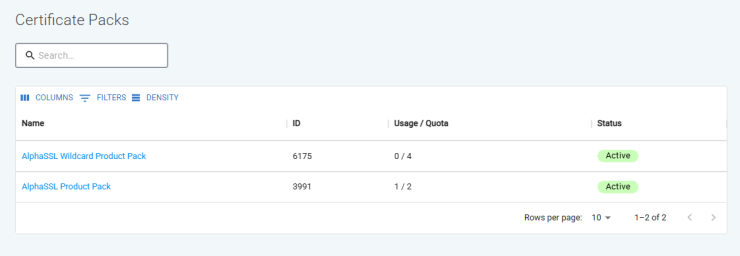
- Select the product you want to view from the list.
-
On this page you can will find two tabs:
• Summary - Breakdown of the product pack usage, quota, overage, and more.
• Service - Details of the selected pack.
In the Summary page, you will find three sections:
-
The first section displays the details of the selected pack, including the product name, order ID, status, usage/quota, creation date, and expiration date.
-
In the Usage section, a graph will display the overall percentage of the product consumption, along with the breakdown of the following:
• Quota - Number of products that were registered as part of the pack.
• Used - Number of products that have been consumed or activated.
• Allocated - Total sum of quota allocated by product pack.
• Overage - Number of products used beyond the registered quota.
-
In the Quota Breakdown, a chart displays how your purchased quota packs are being consumed over time.
-
The pack name (e.g., Pack2_EQIAI5 and Pack1_n3IAF) is represented by the vertical bar (Y-axis), while the horizontal bar (X-axis) represents the timeline of the quota usage.A color‑coded legend indicates the following:
• Quota remaining (light blue) — This is the unused portion of the purchased quota that is still available for consumption.
• Quota usage (dark blue) — This portion is the amount of the pack that has already been utilized.
• Overage (red) — This highlights any usage that goes beyond the purchased quota, meaning you’ve exceeded your allocation.
In the example shown:
• Pack2_EQIA5 still has remaining quota available that hasn't been used.
• Pack1_n3IAF has fully consumed its allocated quota and has entered overage after the quota limit was reached. -
When you hover your mouse over your preferred pack, a breakdown will be displayed, including the start date, end date, and duration.
-
In the Services page, you will find details of the selected pack, including the following:
• Product Name
• Product Type
• Status
• Max SANs
• Max. validity Period
• Wildcard
• Created Date
• Activated Date